Disclosure: We earn a commission on purchases made through links on this page, at no extra cost to you. Learn more.
The keyboard is the single piece of gear your hands touch more than anything else in your home office — thousands of keystrokes a day, every workday, for years. And yet most remote workers are still typing on whatever cheap membrane keyboard came with their computer five years ago. Upgrading the keyboard is the most underrated home office investment you can make. The right one shifts typing from a low-grade source of fatigue into something you actively enjoy.
We narrowed dozens of options down to three keyboards that consistently outperform their price in real daily use: a wireless productivity workhorse, a hot-swappable mechanical that has won over the office-keyboard crowd, and a stylish low-profile mechanical that bridges quiet typing with premium feel.
Disclosure: As an Amazon Associate we earn from qualifying purchases. Prices and availability change frequently — check the retailer page for current pricing. See our Affiliate Disclosure for full details.
Quick Comparison
| Keyboard | Best For | Switch Type | Connectivity | Layout | Approx. Price |
|---|---|---|---|---|---|
| Logitech MX Keys S | Best overall productivity | Scissor (low-profile) | Bluetooth + USB receiver | Full-size | $110–$130 |
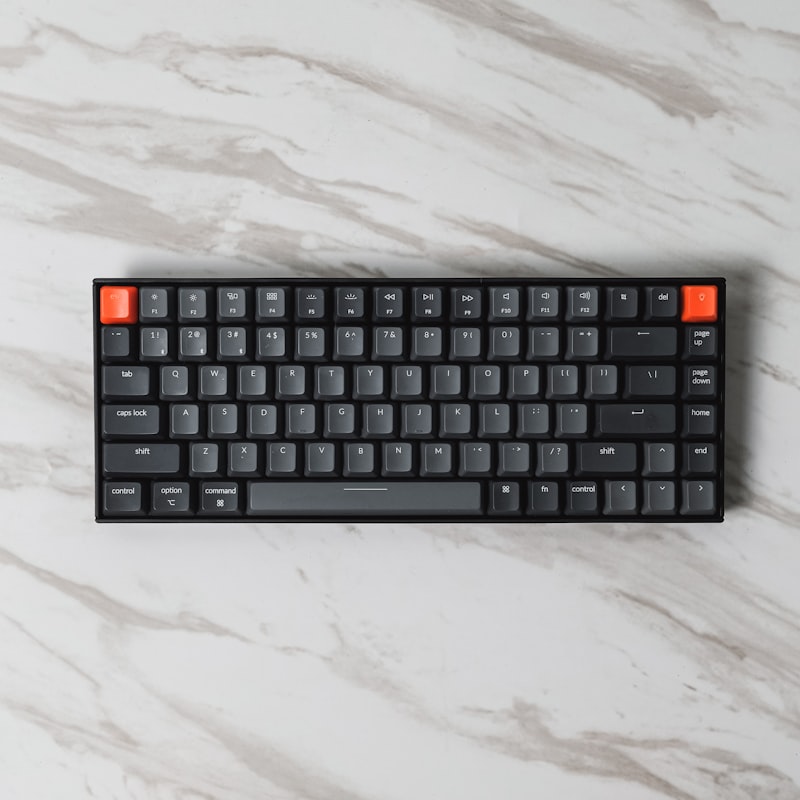
| Keychron K Pro | Best mechanical for office | Hot-swap mechanical | Bluetooth + wired | 75% or TKL | $95–$140 |
| NuPhy Halo75 | Premium low-profile mechanical | Low-profile mechanical | Bluetooth + wired + 2.4 GHz | 75% | $160–$200 |
1. Logitech MX Keys S — Best Overall Productivity Keyboard
The Logitech MX Keys S is the keyboard we recommend to people who do not want to think about keyboards. It is quiet, fast, ergonomically sensible, and just works across every device you own. The scissor-switch keys feel closer to a premium laptop keyboard than a desktop one — shallow travel, soft landing, and accurate key registration even at typing speeds that would skip on cheaper boards.
The standout feature is Logitech’s Easy-Switch functionality. Pair the keyboard with up to three devices — laptop, tablet, second monitor’s PC — and switch between them with a single key press. For anyone juggling a personal laptop and a work computer on the same desk, this alone is worth the price. The backlight is proximity-activated and dims automatically based on ambient light. The USB-C charge holds for about 10 days of typical use.
Where it falls short: Mechanical keyboard enthusiasts will find the scissor switches uninspiring — there is no satisfying tactile feedback. The full-size layout takes up significant desk space, which can be a problem on compact setups. The proprietary Logi Bolt receiver is required for the most reliable wireless connection; Bluetooth-only mode has occasional reconnection lag.
Pros
- Easy-Switch between three devices is genuinely transformative for multi-device workflows
- Quiet enough for shared spaces and video calls
- Proximity backlight and ambient light sensor work without configuration
- USB-C fast charge — 1 minute of charging gives several hours of use
- Cross-platform: works seamlessly with Mac, Windows, iPad, Android
Cons
- Scissor switches feel uninspired if you have used a good mechanical keyboard
- Full-size layout consumes significant desk real estate
- Bluetooth-only mode has occasional reconnection delays — receiver is more reliable
- Premium price for a non-mechanical keyboard surprises some buyers
→ See Logitech MX Keys on Amazon (tracked)
2. Keychron K Pro — Best Mechanical for the Office
Keychron is the brand that finally made mechanical keyboards practical for the office. The K Pro series — particularly the K8 Pro and K6 Pro — deliver everything enthusiasts care about (hot-swappable switches, gasket-mounted PCB, QMK/VIA programmability) at a price that makes them defensible as a work expense.
The hot-swap feature matters more than it sounds. It means you can change the switch type without soldering — start with quiet brown tactile switches, decide you prefer linear reds, and swap them out in 10 minutes. For an office keyboard, the silent red or silent brown options reduce the click noise that drives coworkers (and video call participants) mildly insane. The 75% and TKL layouts ditch the numpad most office workers never use, freeing up significant desk space.
Where it falls short: Out of the box, the keyboard is heavier and taller than a low-profile board, which takes some users a week to adjust to. Battery life on Bluetooth with backlight on runs closer to 4–5 days, much shorter than the MX Keys. The included keycap legends use a font that some find harder to read at a glance compared to the cleaner Logitech typography.
Pros
- Hot-swappable switches mean you can customize feel without soldering
- Silent switch options keep noise office-appropriate
- 75% and TKL layouts free up desk space versus full-size boards
- QMK/VIA programmability lets advanced users remap any key
- Premium gasket-mounted build that feels closer to $200+ enthusiast boards
Cons
- Taller profile takes adjustment — consider a wrist rest
- Battery life with RGB on is significantly shorter than scissor-switch alternatives
- Default keycap font is divisive
- Mechanical sound, even with silent switches, is louder than scissor keyboards
3. NuPhy Halo75 — Best Premium Low-Profile Mechanical
The NuPhy Halo75 is the keyboard for the buyer who wants the satisfaction of a real mechanical switch without the chunky height that traditional mechanicals impose. The low-profile switches feel noticeably tactile but travel less than full-height mechanicals, which means your hands stay closer to a natural typing position and your wrists thank you by the end of week one.
What sets the Halo75 apart is the build. Aluminum frame, double-shot keycaps with a clean modern legend font, and per-key RGB that does not look gaudy. The triple connectivity — Bluetooth, wired USB-C, and 2.4 GHz dongle — covers every scenario, and switching between three paired Bluetooth devices works the way it should. It is the closest thing to a “premium feel” keyboard in this guide.
Where it falls short: The price is the obvious one — you are paying a clear premium over the Keychron for what is, in practical terms, mostly an aesthetic and form-factor upgrade. The low-profile switches, while better than scissor switches, do not have quite the satisfying depth of full-height mechanicals, which some enthusiasts miss.
Pros
- Low-profile mechanical feel is the best of both worlds
- Aluminum frame and double-shot keycaps deliver premium tactile quality
- Triple connectivity (Bluetooth, USB-C wired, 2.4 GHz) covers every workflow
- RGB lighting is tasteful, not gaudy — office-appropriate
- 75% layout balances function keys with compact footprint
Cons
- Significant price premium over the Keychron for marginal real-world improvement
- Low-profile switches lack the depth full-height mechanical enthusiasts prefer
- Heavier than non-aluminum alternatives — less portable
- Limited keycap aftermarket compared to standard mechanicals
How to Choose: A Buyer’s Guide
Keyboards are personal — what feels great to one typist feels wrong to the next. Here is how to think about which category fits you.
Mechanical vs membrane vs scissor
- Membrane: Cheap, mushy, fine for occasional use but tiring for 8-hour days. Skip these for serious work.
- Scissor: Low-profile, quiet, accurate. Closer to a laptop feel. Great for shared spaces and frequent travel. The MX Keys S sits here.
- Mechanical: Distinct tactile feedback, longer key travel, satisfying typing experience but louder. The Keychron and NuPhy sit here.
Switch type, if you go mechanical
- Linear (red): Smooth, no bump, fast. Common gaming choice but works for typing.
- Tactile (brown): Subtle bump on actuation. Most popular all-rounder for office work.
- Clicky (blue): Loud, satisfying click. Do not use on video calls.
- Silent (silent red, silent brown): Dampened versions of the above. The right call for shared spaces.
Layout matters more than you think
Most office workers use a numpad less than 1% of the time but pay desk-space cost 100% of the time. Consider a 75% layout (keeps function keys and arrows, removes numpad) or TKL/tenkeyless (full layout minus numpad) to reclaim 4–6 inches of desk width. If you do heavy data entry, keep the full-size board.
Wireless or wired?
For office work, wireless is the obvious choice — no cable, easy multi-device switching, clean desk. The trade-off is battery management. A keyboard with 2–3 weeks of battery life is forgettable; one with 4 days demands a charging routine. All three boards above offer multi-week battery life in scissor mode or with RGB off.
Multi-device pairing is a feature, not a luxury
If you split time between a work laptop and a personal computer, a keyboard that pairs to three devices and switches with a single keystroke saves real time. Both the MX Keys and the Halo75 do this well; the Keychron handles it but is slightly clunkier.
Setup Tips
- Set keyboard height with armrests. Forearms parallel to floor, wrists straight. If your keyboard sits too high, use a lower chair position or a keyboard tray.
- Use a wrist rest only when not typing. Wrists should float during active typing — resting them while typing puts pressure on the carpal tunnel. The rest is for breaks, not typing.
- Place the keyboard directly in front of you. Centered on your monitor, not offset toward a numpad. This keeps your shoulders square.
- Adjust tilt angle. Most keyboards have flip-out feet. For neutral wrist position, the keyboard should be flat or slightly negative-tilted (back lower than front), not propped up.
- Clean weekly. Dust and crumbs work into mechanical switches and gradually affect typing feel. A small can of compressed air once a week prevents this.
What We Skipped and Why
A few popular keyboards did not make the cut. The Apple Magic Keyboard is excellent inside an Apple-only ecosystem but its limitations elsewhere (single-device Bluetooth pairing, no programmability, no Windows-friendly modifier layout) hold it back. The Razer BlackWidow and similar gaming-focused mechanicals are too loud and visually busy for most professional settings. The Microsoft Sculpt Ergonomic, while genuinely good for wrist relief, uses an older USB-A receiver design and has not been meaningfully updated in years. We have also held off recommending Das Keyboard models because their pricing has drifted upward without matching innovation in newer competitors.
Frequently Asked Questions
Are mechanical keyboards really better than membrane for typing all day?
For most full-time typists, yes — meaningfully better. The tactile feedback reduces typos because you know when a key has registered. The longer key travel reduces the need to bottom out hard on every press, which means less finger fatigue over a long day. The exception is if you genuinely prefer the laptop-like feel of low-travel keys, in which case a quality scissor keyboard like the MX Keys S is the better fit.
Will my coworkers hate me if I use a mechanical keyboard on video calls?
Only if you choose the wrong switches. Clicky blue switches are call-disrupting and should be reserved for solo work. Silent tactile or silent linear switches are quiet enough that most call participants will not notice. Good noise-cancellation on your microphone helps too. If you are unsure, the scissor-switch MX Keys S removes the question entirely.
How long do good keyboards typically last?
Mechanical keyboards last the longest — switches are usually rated for 50–100 million keystrokes, which is a decade or more of daily use. Scissor and membrane keyboards typically show wear after 3–5 years (sticky keys, intermittent registration). The hot-swap design on boards like the Keychron means even if a switch fails, you can replace just that one switch in minutes rather than buying a new keyboard.
Is wireless reliable enough for serious work?
Yes — especially when using a 2.4 GHz dongle rather than Bluetooth. All three keyboards above offer the dongle option, and lag is imperceptible in normal typing. Bluetooth has occasional reconnection delays on wake from sleep, which is a minor annoyance but not a deal-breaker for office use. Gamers and competitive typists may still prefer wired.
Do I need an ergonomic split keyboard?
Only if you have wrist or shoulder pain from typing — split keyboards let your shoulders sit naturally rather than rolling inward. They require a real adjustment period (2–4 weeks) during which your typing speed drops. For most users without existing pain, a regular keyboard with proper desk setup is enough. If you do have symptoms, a split layout is worth investigating, but it is a different category than what we covered here.
Does keyboard backlighting actually matter?
For touch typists in a well-lit room, no — backlighting is mostly cosmetic and shortens battery life. For anyone who occasionally hunts for keys (function shortcuts, special characters) or works in a dimmer space, backlighting is genuinely useful. The MX Keys S handles this elegantly with proximity-activated and ambient-sensor controlled lighting that turns on only when needed.
The Bottom Line
If you want a single recommendation, the Logitech MX Keys S is the keyboard we would buy for most remote workers. It is quiet, productivity-focused, and handles multi-device workflows better than anything in its price range. If you have used a mechanical keyboard before and missed the feel, the Keychron K Pro is the office-friendly upgrade path — especially with silent switches and the hot-swap flexibility. And if budget allows and you want the most premium typing experience that still fits a professional desk, the NuPhy Halo75 is the splurge that pays back in daily satisfaction.
Whatever you choose, give it a real two-week trial before judging it. Every keyboard feels strange for the first few days — the muscle memory adjustment is part of the deal.